Build Running Workouts with Daniels-Style Training Paces
Set up Daniels-style training pace ranges, create an Interval workout, and edit work and recovery in RunSync before saving or sending to Garmin Connect.
A recent race tells you how fast you can cover one distance. Building a training session asks a different question: what pace should you use for the work, and what should happen between efforts?
RunSync’s Daniels-style training paces give you five ranges to work with. You can calculate them from a race result, review them before saving, and turn a selected range into an editable workout.
This guide uses the saved pace ranges shown below to create a four-by-two-minute Interval session, with warm-up, recovery and cool-down included. A second example shows how changing the structure can retain the same work range.
What are Daniels-style training paces?
Jack Daniels’ training framework distinguishes running intensities by the purpose of the session. RunSync uses five familiar categories:
| Pace category | Session focus | Example use |
|---|---|---|
| Easy | Comfortable aerobic running | An easy run or relaxed warm-up |
| Marathon | Sustained marathon-effort work | A controlled block within a longer run |
| Threshold | Sustained, controlled hard work | Repeated efforts with brief recovery |
| Interval | Hard aerobic efforts | Short work bouts separated by easy running |
| Repetition | Speed and running economy | Short, smooth efforts with generous recovery |
These distinctions follow the purposes explained in Jack Daniels’ training definitions. RunSync’s workout structures are editable starting templates; the example sessions here are RunSync defaults.
The race calculation estimates a VDOT score and derives pace ranges. VDOT represents running performance and differs from a measured VO2max. Treat the resulting paces as estimates to review alongside how the effort feels.
A range gives you room to settle. Its faster boundary is not a target you need to chase on every repetition.
Calculate your pace ranges from a recent race
Use a result that reflects your current fitness. If you want help choosing one, start with how to turn a recent 5k into useful training paces.
You can try the public Training Pace Calculator without signing in. The walkthrough below uses the signed-in Running paces settings, where you can compare saved ranges with a new preview and create a workout from either.
- Sign in and open My training settings, then choose Running paces.
- Select Recalculate from a race result.
- Choose your race distance and enter your finish time in hours, minutes and seconds.
- Select Preview paces.
- Check the proposed ranges and your Display units. The examples below use minutes per kilometre.
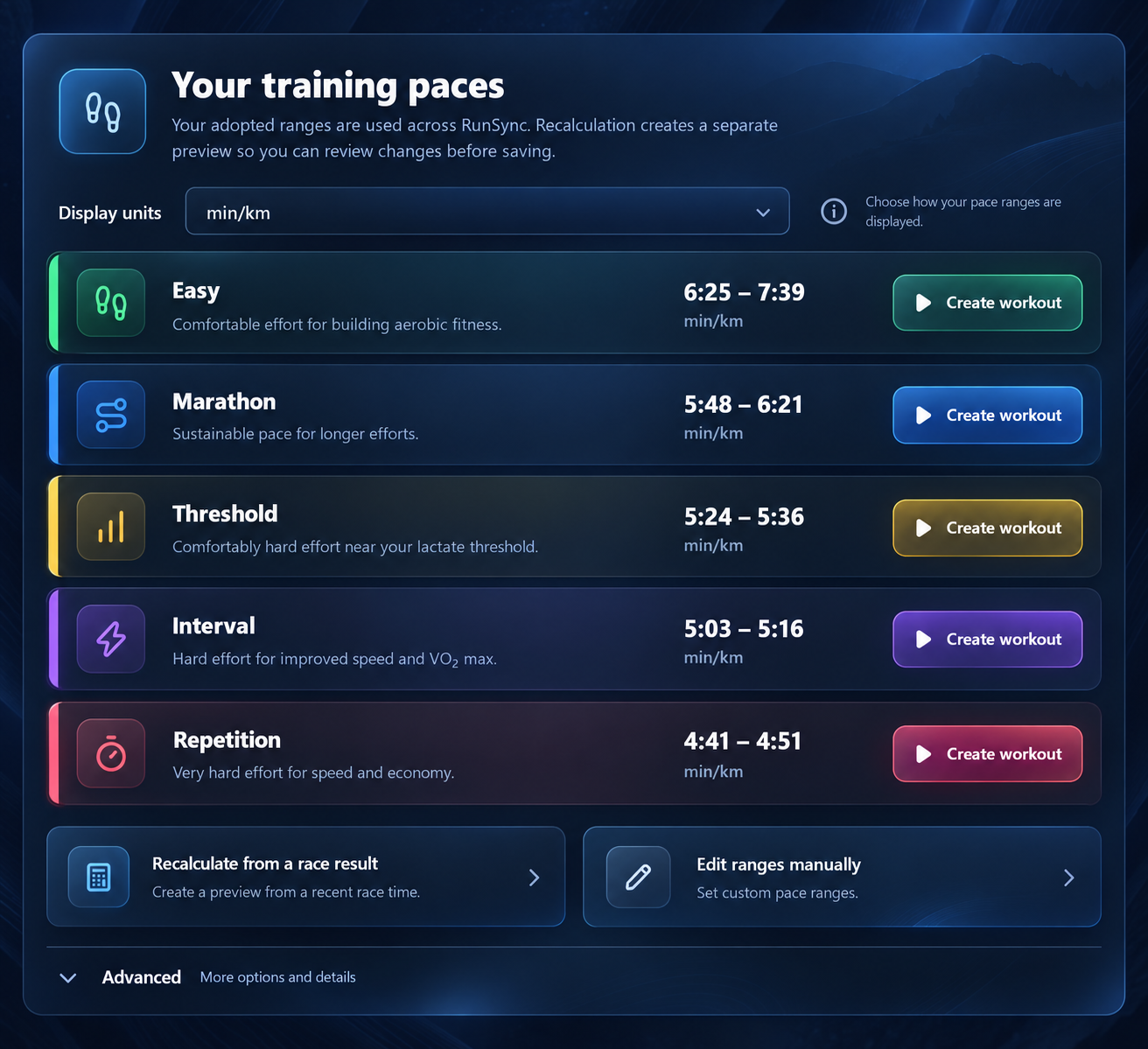
The example profile illustrated below already has these saved ranges. Use your own calculated or manually entered ranges when following the guide; the originating race result for this profile is not shown.
| Category | Faster → Slower, min/km |
|---|---|
| Easy | 6:25–7:39 |
| Marathon | 5:48–6:21 |
| Threshold | 5:24–5:36 |
| Interval | 5:03–5:16 |
| Repetition | 4:41–4:51 |
Save your ranges, or use the preview for a workout
Calculating creates a preview. Your saved ranges remain separate until you choose Save training paces.
Saving stores all five proposed ranges for future use across workouts. It replaces the five previously saved ranges, including manual adjustments. Review the whole set before confirming. Account storage is available with Run or Complete; calculation is free.
You can also select Create workout beside a proposed range without saving it to your account. That lets you try the calculation in a session while leaving your adopted settings alone. Saving or sending the resulting workout follows the normal account and plan requirements.
For the illustrated walkthrough, start from the saved Interval row. The workout preview identifies its target as Saved Interval range. Creating from an unsaved preview is also supported; check the source shown before creating the draft.
Can I use ranges from my coach?
Yes. Choose Edit ranges manually, enter the faster and slower limits for each category, then preview before saving or creating a workout. Manually entered ranges use the same category names, but their values come from you or your coach.
Create an Interval workout with the full range
Select Create workout beside Interval. In the workout preview, choose Intro intervals · 4 × 2 min if another session variant is selected.
The starting structure is:
Intro intervals · 39 minutes total
- 15 minutes easy warm-up.
- Four efforts of 2 minutes at the selected Interval range.
- 2 minutes easy recovery between efforts: three recoveries in total.
- 10 minutes easy cool-down.
With the illustrated saved settings, each work effort uses 5:03–5:16/km as its displayed range. The preview defaults to Use full selected range under Target options. Keep that choice to preserve both bounds; Use midpoint changes the target policy.
There are four efforts and three recoveries. After the final effort, you move directly into the cool-down. Work totals 8 minutes, recovery totals 6 minutes, and warm-up plus cool-down add 25 minutes: 39 minutes altogether.
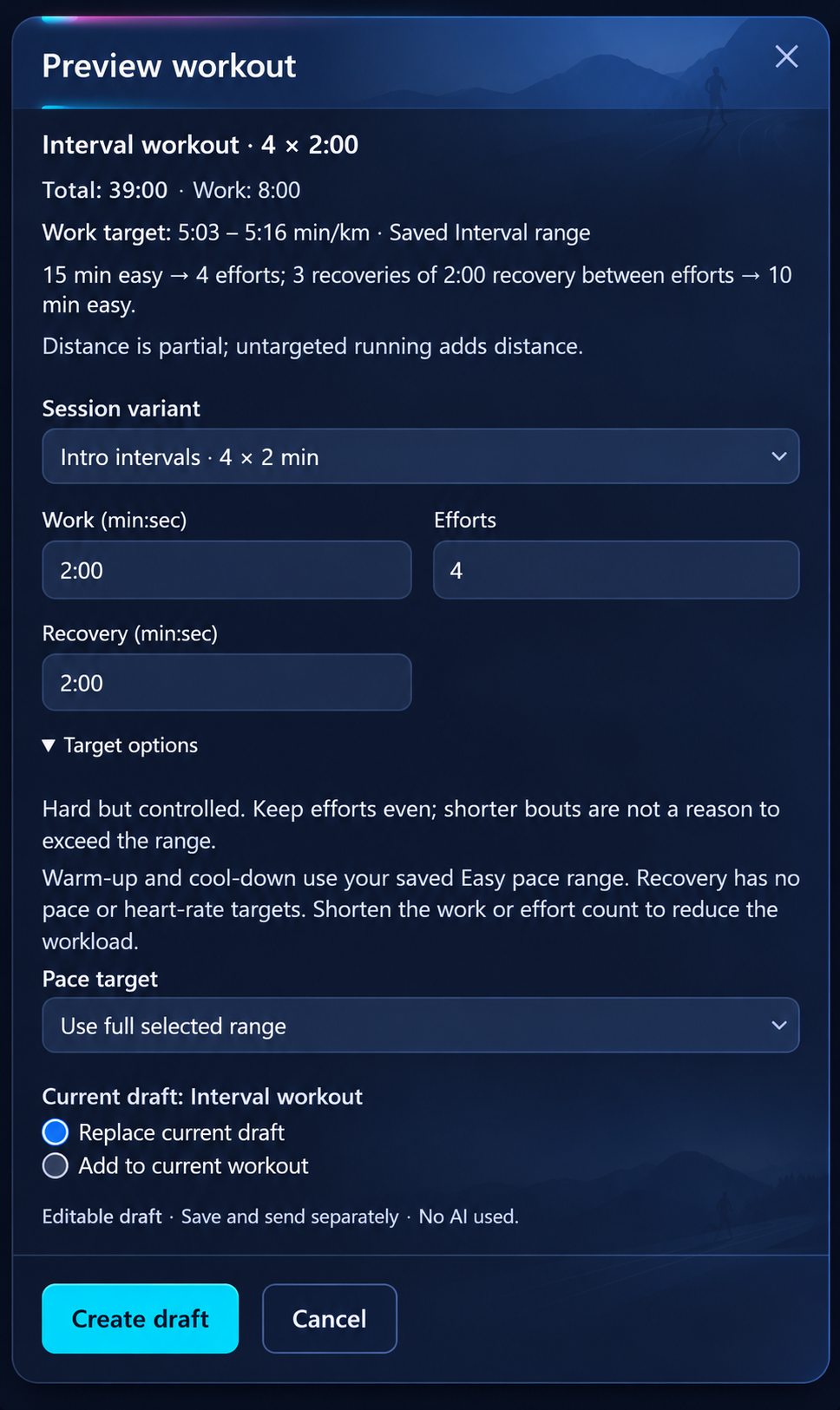
The preview also labels distance as partial when some running cannot be estimated from its targets. Here the recovery is untargeted: 39 minutes is the full duration, while a distance subtotal cannot describe every step.
Adjust the work duration, effort count or recovery in the preview if needed, then select Create draft. This opens an editable session in Run Builder. It uses no AI and has not saved, scheduled or sent the workout.
If you already have a draft, review the choice to replace it or Add to current workout. Adding appends the complete generated session, including its warm-up and cool-down. Choose Cancel to leave the current draft alone.
Check work and recovery targets separately
In Run Builder, check the interval work target and the displayed watch alert range. The work should retain the full selected Interval bounds, 5:03–5:16/km in this example.
When you generate from saved training paces, warm-up and cool-down use your saved Easy range when available. For the saved example above, that displays as 6:25–7:39/km. Generation directly from an unsaved preview leaves those easy sections without pace targets, so review them before running.
Recovery defaults to Run by feel, which means no pace or heart-rate alerts. Work and recovery have separate target controls: you can keep the Interval range for work while choosing how to guide the easy running.
A different structure can keep the same range
The next illustration shows a separate edited example: three 5-minute efforts with two 1-minute recoveries, retaining the same saved Interval range. With a 15-minute warm-up and 10-minute cool-down, its total is 42 minutes.
Changing the count, work duration or recovery does not change the selected pace category. This example still uses Interval, even though three-by-five-minute sessions can also be built using Threshold paces. Check both the workload and target range when adapting a session.
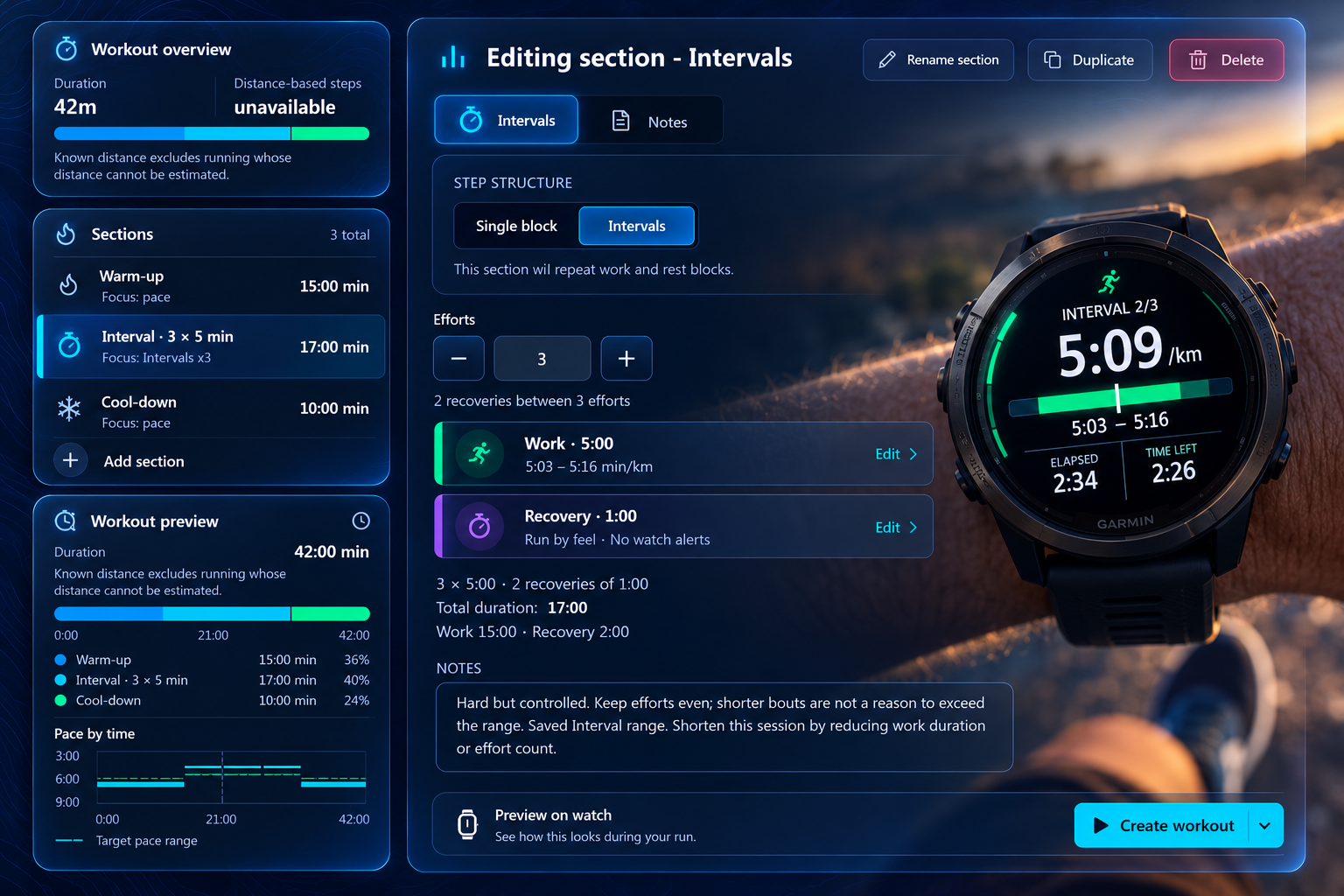
The template does not assess your training history. The 42-minute example contains more hard running and less recovery than the introductory session; it is an editing example, not a recommended progression. Shorten the work or reduce the count to suit your session. On mobile, commit interval edits with Apply changes; Cancel discards unapplied edits. Desktop controls update the working draft immediately. Saving the workout remains a separate action.
Pace should still make sense for the day. Ease off for heat, hills or fatigue, and avoid turning controlled work into a race to satisfy a number.
Will new training paces change workouts I already made?
No. These generated workouts keep the numeric ranges copied into them. Recalculating or saving new account paces does not rewrite existing drafts or saved workouts.
After a new race, review your ranges, save them if appropriate, and explicitly select the updated range in a workout or generate a fresh session. This lets you decide when an existing workout should change.
Once your draft is ready, save it for reuse or follow the guide to sending a structured workout to Garmin Connect. Sending to Connect and syncing to a compatible watch are separate steps; review the connection, plan and device requirements in that guide.
When should you explore Advanced threshold paces?
The five Daniels-style categories provide a starting point for common sessions. If you want to explore distinctions such as Steady, Tempo, Sub-threshold and Supra-threshold, open Advanced within Running paces.
Advanced derives ranges from percentages of a threshold-speed reference. That is a separate calculation from the race-result ranges above, and exploring it leaves your five saved training pace ranges unchanged. Continue with Part 2: sub-threshold and over/under workouts to choose a reference and build your next session.
Turn your latest result into a workout
Preview your training paces, choose a session and review its range before creating a draft. You can adjust the workout before saving or sending it.
Calculate my training paces